
Imagine editing a live report while the hospital’s executive team is looking at it. You change a measure, a visual breaks, and suddenly the dashboard the chief operating officer relies on is showing errors, in front of everyone. This is the everyday risk of editing production content directly, and it is exactly the risk that Deployment Pipelines exist to eliminate. They give Power BI a professional, governed path from a developer’s work in progress to the polished reports an organization depends on, with structured checkpoints along the way.
Key Takeaways
- Deployment Pipelines provide a structured Development, Test, and Production workflow for Power BI content, bringing Application Lifecycle Management (ALM) to analytics.
- Each stage is a separate workspace with a distinct purpose and audience: developers build, QA and business validate, end users consume.
- Production content should never be edited directly, changes flow up through the pipeline after testing, protecting live dashboards.
- Deployment rules and data source rules let each stage point at the right data automatically, so Test uses test data and Production uses production data.
- Pipelines can be automated through the Power BI REST API and integrated with Azure DevOps and Git for full CI/CD, and generally require Premium, Premium Per User, or Fabric capacity.
Deployment Pipelines are how professional Power BI teams manage the journey of a report from creation to live use. For anyone deploying analytics at organizational scale, especially in governed environments like healthcare, finance, or the public sector, understanding pipelines is what separates ad hoc publishing from a controlled, auditable release process.
This article is part of the Zytriona Power BI learning series. It builds directly on Power BI Service Explained (workspaces and publishing) and complements Power BI Row-Level Security and Power BI Incremental Refresh. If you are new to the platform, start with What Is Power BI?
What Are Power BI Deployment Pipelines?
Power BI Deployment Pipelines are a feature that provides a structured, three-stage environment, Development, Test, and Production, for building, validating, and releasing Power BI content in a controlled way. They bring Application Lifecycle Management (ALM), a discipline long established in software development, to Power BI analytics.

The concept mirrors how professional software is built. Developers do not write code directly on the live system that customers use. Instead, they build in a development environment, move the work to a testing environment for validation, and only then release it to production. Deployment Pipelines apply this same proven model to Power BI reports, dashboards, datasets, and dataflows.
Each of the three stages is a separate Power BI workspace, linked together in a pipeline. Content is created in the Development workspace, then promoted, “deployed”, up to Test, and finally up to Production. At each promotion, Power BI copies the content forward, giving teams clear checkpoints to review and validate before anything reaches the people who depend on it. Microsoft’s overview of what deployment pipelines are describes this staged model in full detail.
Why Deployment Pipelines Matter
Without a structured deployment process, Power BI content is typically published directly from Desktop into a single workspace that serves as development, testing, and production all at once. This works for small, informal projects but breaks down badly at organizational scale.
Protecting live reports. When there is no separation, every change a developer makes lands immediately in front of end users. A broken visual, an incorrect measure, or a half-finished edit is instantly visible to executives and decision-makers. Pipelines prevent this by keeping development work entirely separate from production.
Enabling proper testing. A dedicated Test stage enables QA teams and business stakeholders to validate reports against real-world data before release. Errors are caught in Test, where they are harmless, rather than in Production, where they damage trust.
Governance and auditability. Pipelines create a clear, reviewable record of what was deployed, when, and by whom. In regulated industries, this auditable release trail is often a compliance requirement, not a nicety.
Consistency and repeatability. A defined pipeline turns deployment from an ad hoc, error-prone manual task into a repeatable, controlled process, reducing the risk of human error at the most sensitive moment, the release itself. Microsoft’s implementation planning guidance on content lifecycle management sets out why this structure matters for enterprise deployments.
Understanding the Three Pipeline Stages
A Deployment Pipeline consists of three linked stages, each a separate workspace with a distinct purpose and audience. Understanding what each stage is for is the foundation of using pipelines effectively.
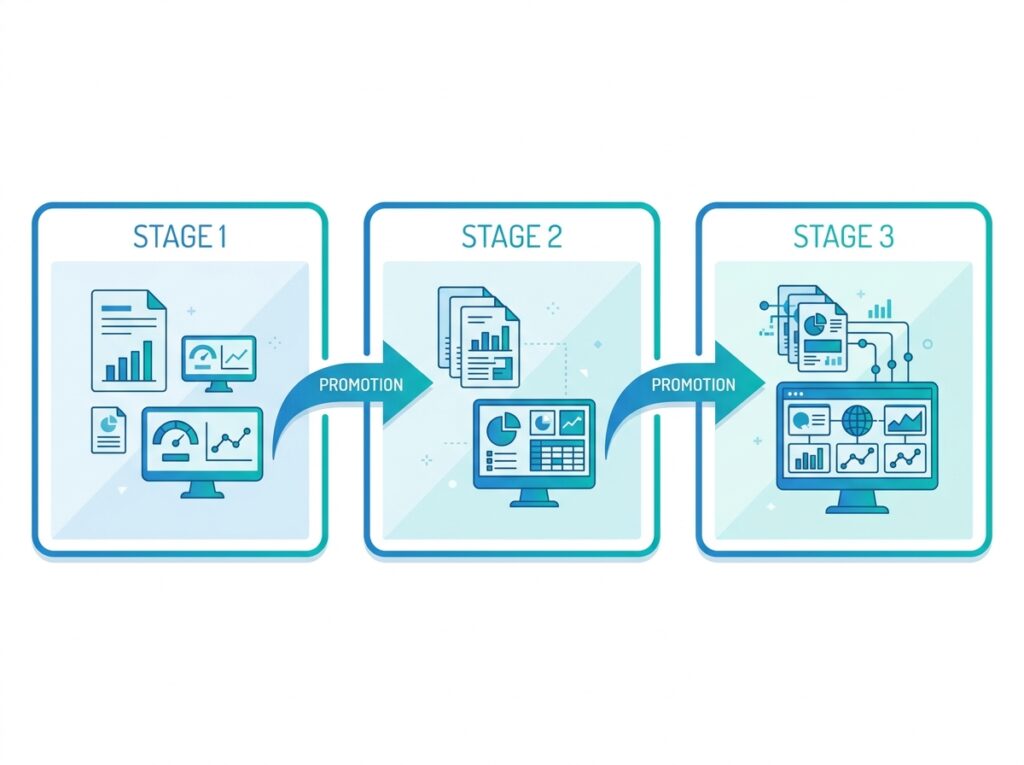
[IMAGE 2 — THREE WORKSPACES DIAGRAM GOES HERE]
Prompt: A clean diagram showing three distinct workspace boxes arranged horizontally and labeled as three stages, connected by promotion arrows flowing left to right, each box containing small report and dashboard icons, blue and teal flat vector style, white background, no readable text.
Alt text: Diagram of the three Power BI Deployment Pipeline stages as linked Development, Test, and Production workspaces
| Stage | Purpose | Users |
|---|---|---|
| Development | Build | Developers |
| Test | Validation | QA & Business |
| Production | Live Reports | End Users |
Development Workspace
The Development workspace is where report authors do their active work. Developers publish their Power BI Desktop files here, iterate on data models and visuals, and build out new features. This stage is expected to be messy and in flux; it is the workshop, not the showroom. Only the development team has access, so unfinished work never reaches anyone else.
Test Workspace
The Test workspace is where content is validated before it goes live. Once development work is ready, it is deployed from Development into Test. Here, QA teams and business stakeholders review the reports, check the numbers against expectations, verify that visuals render correctly, and confirm the content meets requirements. A test typically connects to a test or staging data source or to production-like data, so validation happens under realistic conditions without touching live systems.
Production Workspace
The Production workspace holds the live, approved content that end users consume. Only validated content that has passed through Test is deployed to Production. This is the stage that feeds the apps and dashboards that executives and staff rely on daily, as distributed through the mechanisms described in Power BI Service Explained. The golden rule: Production is never edited directly, all changes arrive by promotion from Test.
How Deployment Pipelines Work
A pipeline connects the three workspaces and manages content promotion between them. Once set up, deploying content from one stage to the next is a controlled, often single-click operation that copies the content forward while applying any configured rules.
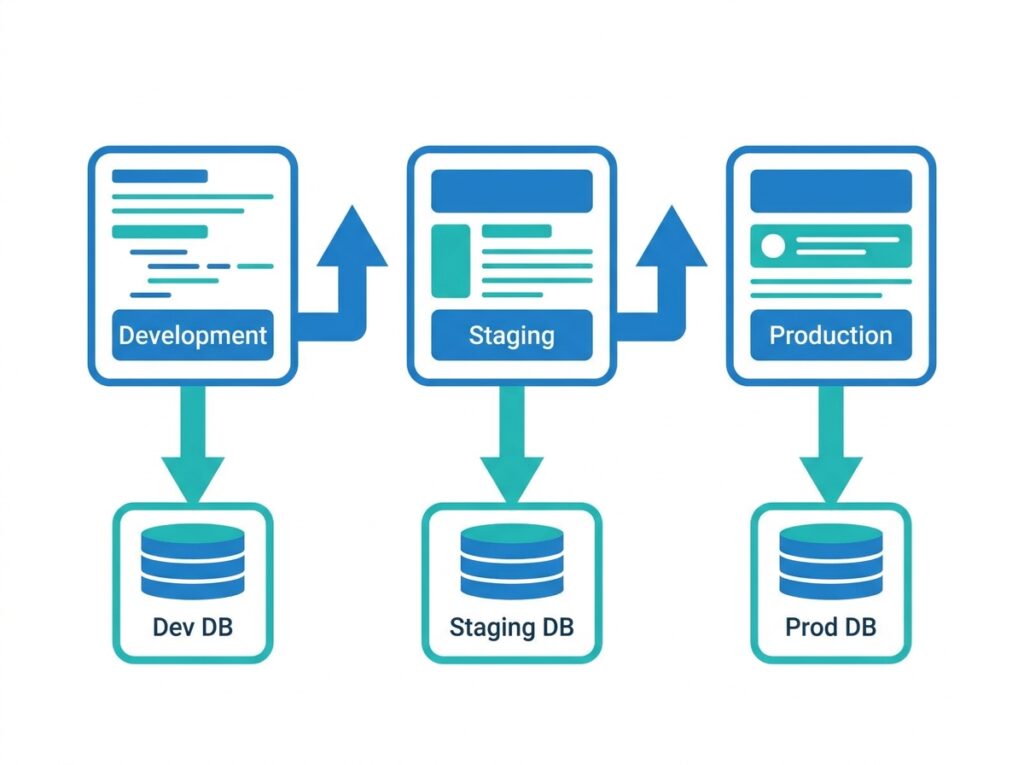
Setting up a pipeline involves creating it in the Power BI Service and assigning an existing workspace to the Development stage. Power BI then helps you create or assign the Test and Production workspaces. Once the pipeline is established, several capabilities make it powerful:
- Selective deployment. You can deploy all content at once, or select specific items, individual reports, datasets, or dashboards, to promote. This lets you release a single fixed report without pushing everything else forward.
- Compare changes. Before deploying, the pipeline shows what differs between stages, which items are new, changed, or unchanged, so you know exactly what a deployment will alter.
- Deployment history. The pipeline records each deployment, providing an auditable trail of what was released and when.
These features together turn deployment into a transparent, reviewable process. You always know what is about to change, you can promote precisely what is ready, and you retain a record of every release.
Deployment Rules Explained
Deployment rules are configurable settings that automatically adjust content as it moves between stages, ensuring each stage behaves correctly for its environment without manual edits after every deployment.
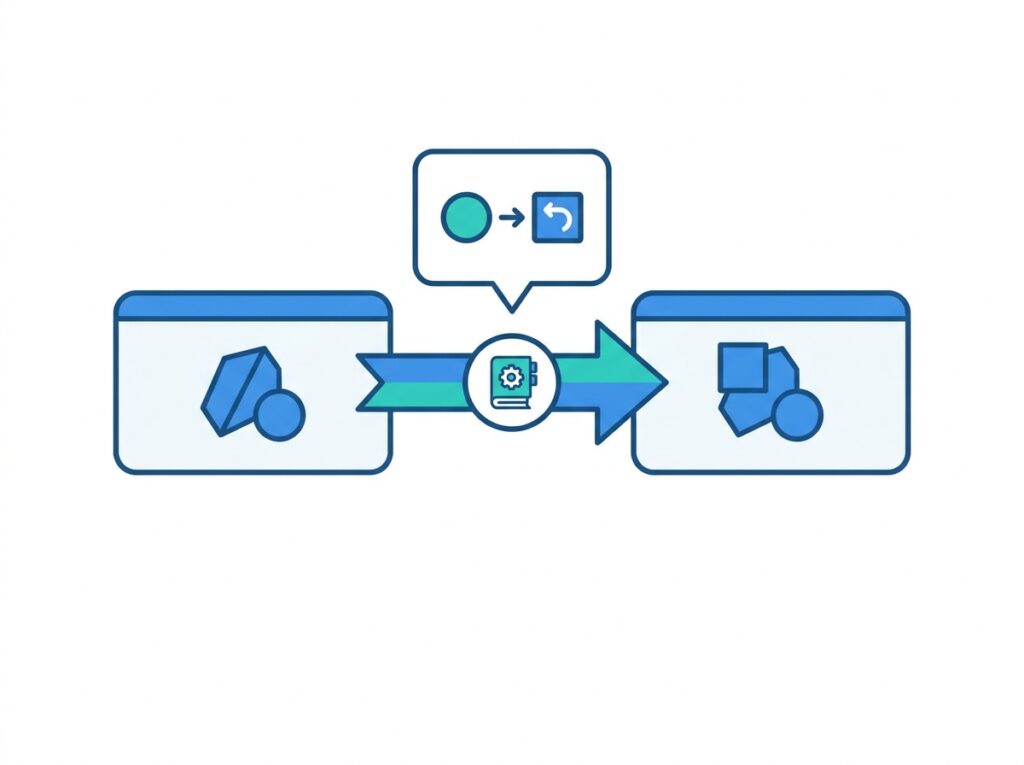
The problem deployment rules solve is straightforward. A report in Development should point at development data. When that report is promoted to Production, it must point at production data instead, but you do not want to manually rewire connections on every deployment. Deployment rules handle this automatically.
The two most important types of rule are:
- Data source rules. These automatically switch the data source connection for a stage. A rule on the Production stage can specify that any dataset deployed there connects to the production database, regardless of what it pointed at in Development or Test.
- Parameter rules. These set the value of a Power Query parameter for a given stage. When combined with parameterized connections, as covered in Power Query in Power BI Explained, they allow a single dataset to adapt cleanly to each environment.
Rules are defined once on the target stage and then applied automatically on every future deployment to that stage. This is what makes pipelines truly hands-off: promote content, and it arrives correctly configured for its environment every time.
Managing Data Source Connections
Managing which data each stage connects to is one of the most important aspects of a well-run pipeline. The principle is that each stage should use data appropriate to its purpose, and the pipeline should enforce this automatically.
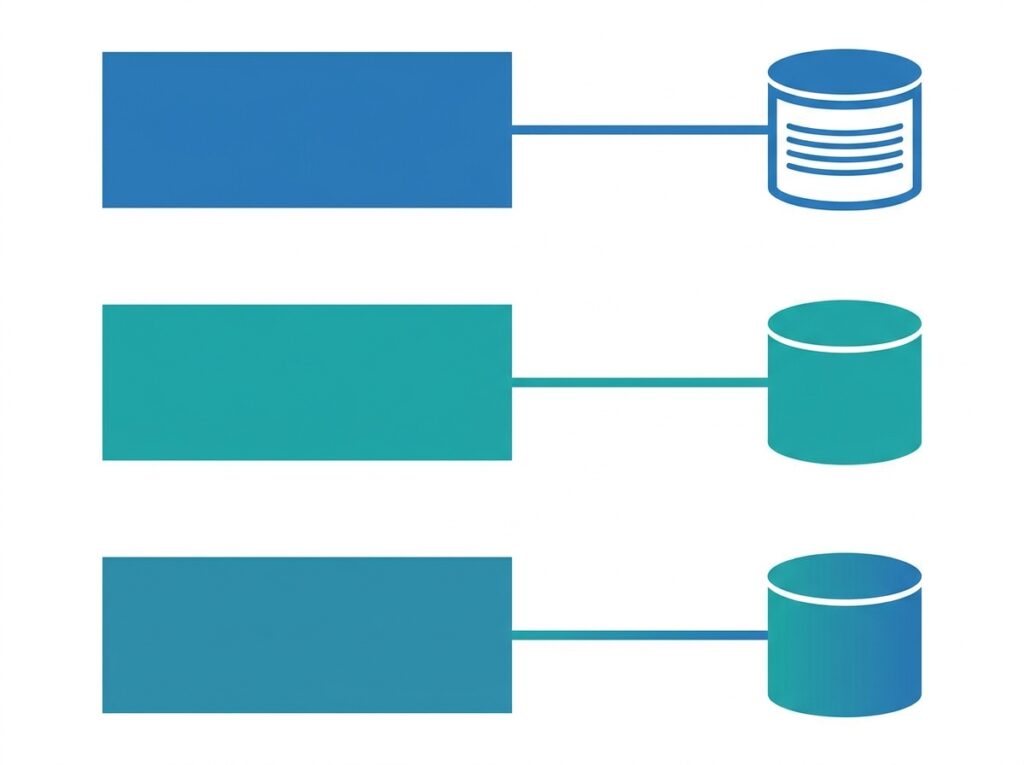
In a mature setup, Development connects to a small development or sample dataset, fast to work with and safe to experiment on. Test connects to a staging database or a production-like copy, so validation reflects real conditions. Production connects to the live production database that feeds real decisions.
Data source rules make this separation automatic. Without them, a developer might accidentally leave a report pointing at development data after promoting it to Production, a subtle but serious error that could put wrong numbers in front of executives. With a data source rule in the Production stage, the connection is automatically corrected on every deployment, eliminating that risk entirely.
Parameterizing connections in Power Query and binding those parameters to each stage via parameter rules is the cleanest way to manage this. It keeps the dataset environment-agnostic and lets the pipeline supply the right connection details at each stage.
Deployment vs Publishing
It is important to distinguish deploying through a pipeline from simply publishing from Power BI Desktop. They are different operations serving different purposes, and understanding the distinction clarifies when pipelines add value.
Publishing, covered in detail in Power BI Service Explained, is the act of uploading a report from Desktop into a single workspace. It is manual and direct, with no built-in concept of stages, testing, or governed promotion. Deploying is the controlled promotion of content between linked stages of a pipeline, with built-in comparison, rules, and history.
| Feature | Publish | Deployment Pipeline |
|---|---|---|
| Manual process | Yes | No (controlled promotion) |
| Dev / Test / Prod stages | No | Yes |
| Compare changes before release | No | Yes |
| Deployment history | No | Yes |
| Governance | Low | High |
| Enterprise ready | Limited | Yes |
The two are not mutually exclusive. Developers still publish from Desktop into the Development workspace, that is how content enters the pipeline. From there, the pipeline takes over, promoting the content through Test to Production in a governed way. Publishing gets content into the pipeline; deployment moves it through.
Deployment Pipelines and CI/CD
Deployment Pipelines bring the concepts of Continuous Integration and Continuous Deployment (CI/CD) to Power BI. While the built-in pipeline UI handles manual, controlled deployment well, the real power for enterprise teams comes from automation.
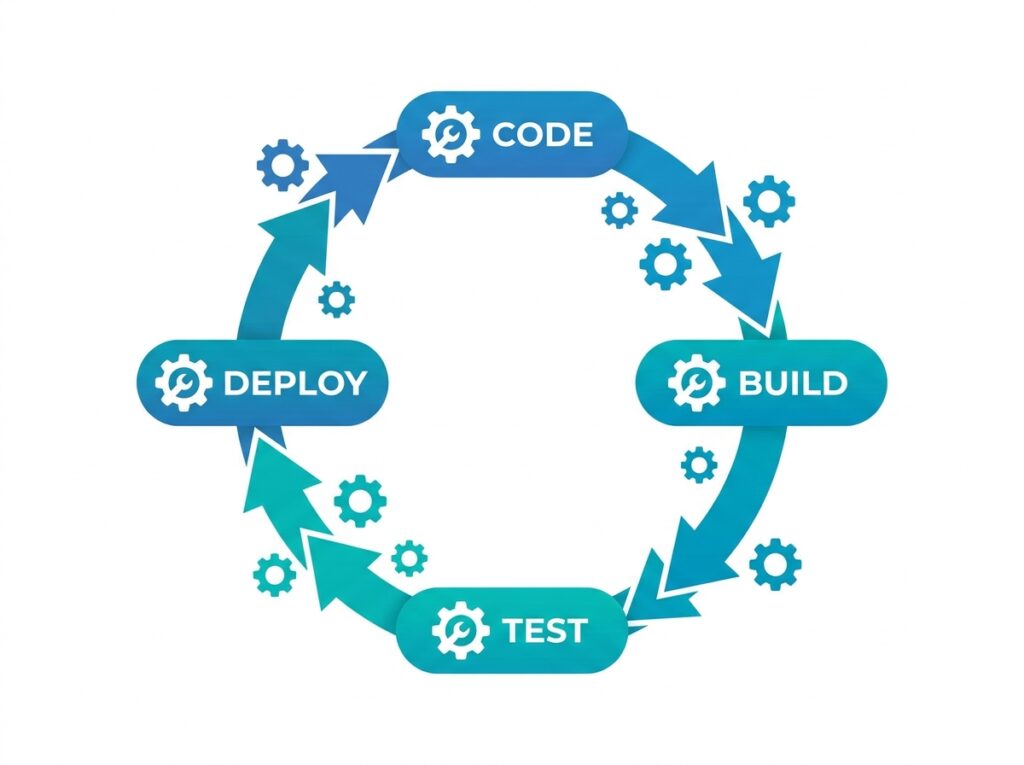
Several capabilities extend pipelines into full automation:
- Power BI REST API. Pipelines can be controlled programmatically. The Power BI Pipelines REST API lets you trigger deployments from scripts and external systems, including a Deploy All operation that promotes an entire stage in one automated call.
- Azure DevOps integration. Deployments can be built into Azure DevOps release pipelines, so promoting Power BI content becomes part of a broader, orchestrated release process alongside other applications.
- Git integration. Source control integration lets teams version their Power BI content, track changes over time, and align analytics development with standard software engineering practices.
For most organizations, the manual pipeline is the right starting point, it delivers the core governance benefits with minimal setup. Automation via the REST API, Azure DevOps, and Git is the next step for teams needing fully orchestrated, hands-off release management at scale.
Power BI Deployment Workflow
Bringing the pieces together, the end-to-end workflow for deploying content through a pipeline follows a clear, repeatable sequence.
- Build in Desktop and publish to Development. Developers create content in Power BI Desktop and publish it to the Development workspace.
- Deploy to Test. When the work is ready, promote it from Development to Test through the pipeline.
- Validate in Test. QA teams and business stakeholders review the content against real-world data and confirm that it meets the requirements.
- Compare changes. Before deploying to Production, review exactly what will change using the pipeline’s comparison view.
- Deploy to Production. Promote the validated content to Production, where data source rules automatically point it at the live data.
- Distribute to end users. Publish the Production content as an app so end users consume the approved, governed reports.
- Record and monitor. The deployment history captures the release, and ongoing monitoring confirms everything is performing correctly.
This sequence, build, deploy to test, validate, compare, deploy to production, distribute, record, is the backbone of governed Power BI deployment at scale.
Hospital Analytics Deployment Example
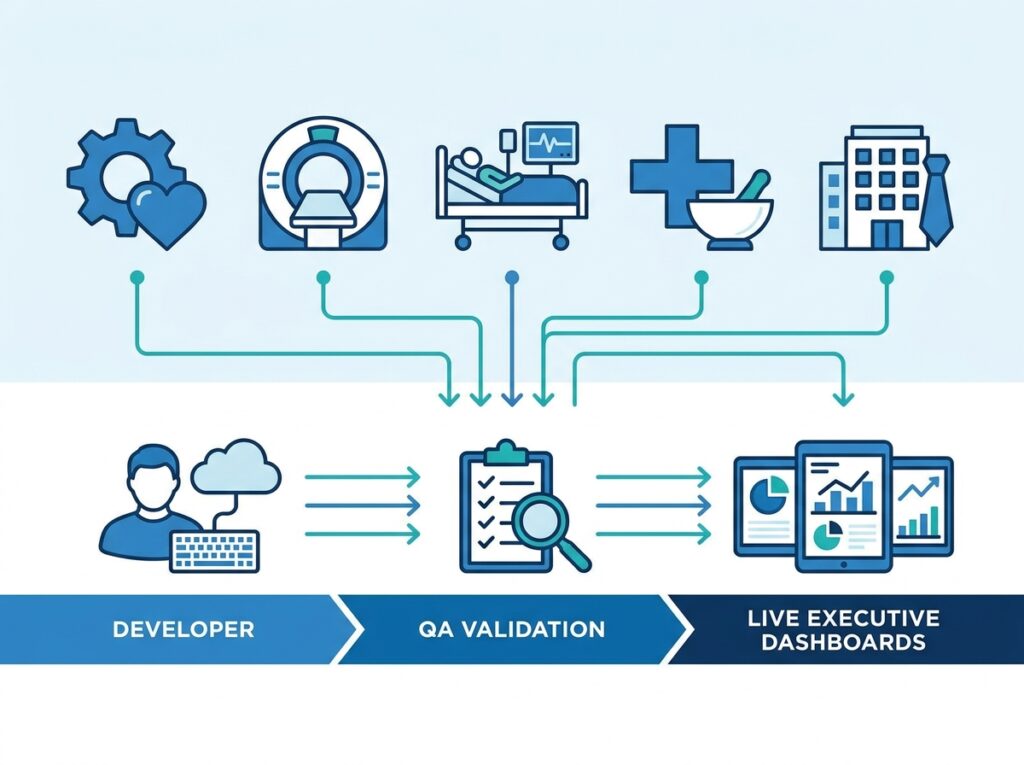
This section demonstrates Deployment Pipelines in a realistic, governance-critical scenario: a hospital managing analytics across multiple departments where broken or incorrect reports carry genuine operational consequences. It shows why the discipline of Dev, Test, and Production is not bureaucracy but protection.
The Scenario
A hospital runs analytics across Biomedical Engineering, Radiology, ICU, Pharmacy, and Executive Reporting. The deployment flow works as follows:
- A developer builds and updates reports in the Development workspace.
- The QA team validates them in the Test workspace against realistic data.
- Hospital executives receive the approved dashboards from Production.
- Only reports that pass validation ever reach Production.
- Critical operational dashboards, such as ICU and emergency monitoring, remain stable while updates are developed and tested.
Why Production Should Never Be Edited Directly
In a hospital, an ICU bed-occupancy dashboard or an emergency-department monitoring report may be consulted continuously to support real operational decisions. If a developer edited that report directly in Production and introduced an error, a broken visual, or a miscalculated measure, the consequences are not just embarrassment; they include clinicians and managers making decisions based on incorrect or missing information. Keeping Production untouched, with changes arriving only through tested promotion, removes this risk entirely.
How Testing Prevents Broken Executive Dashboards
When the biomedical engineering team updates the equipment maintenance dashboard, drawing on the kind of data and design covered in How to Build Your First Power BI Dashboard, the update first goes to Test. There, QA confirms the uptime figures reconcile, the compliance calculations are correct, and every visual renders. Only after this validation does the update reach the executives in Production. A calculation error that would have misled leadership is caught in Test, where it harms no one.
Rollback Strategy
If a problem is discovered in Production after a deployment, the pipeline structure supports recovery. Because the previous validated version exists in the pipeline’s history and in the lower stages, teams can redeploy a known-good version to restore Production to a correct state. Maintaining the last stable version and using the deployment history as a reference point is the foundation of a sound rollback strategy, far safer than trying to hand-fix a live report under pressure.
Governance
The pipeline provides the hospital with an auditable record of every change to its analytics: what was deployed, when, and with what validation. Combined with the row-level security described in Power BI Row-Level Security, which controls who sees which department’s data, the pipeline controls how content reaches production in the first place. Together they form a complete governance picture, appropriate for an environment where both data access and data accuracy carry real stakes.
Deployment Pipeline Best Practices
Never edit Production directly. All changes should flow through the pipeline from Development through Test. Direct Production edits defeat the entire purpose of the pipeline and reintroduce the risk it exists to remove.
Configure data source rules on every stage that needs them. Ensure Test uses test data and Production uses production data automatically, so promoted content is always correctly connected.
Always use Compare changes before deploying to Production. Review exactly what will change before it reaches live users. Surprises in Production are precisely what the pipeline is designed to prevent.
Validate thoroughly in Test. Involve both QA and business stakeholders. The people who understand what the numbers should say are essential to meaningful validation.
Parameterize data connections. Use Power Query parameters bound to stage rules so a single dataset moves cleanly across environments without manual rewiring.
Maintain a rollback plan. Keep the last known-good version identifiable in the pipeline so you can restore Production quickly if a deployment introduces a problem.
Control workspace access per stage. Limit Development access to developers, Test access to developers and validators, and Production access appropriately, applying least-privilege principles throughout.
Consider automation once the manual process is solid. When the team is comfortable, extend into REST API automation, Azure DevOps, and Git integration for fully orchestrated CI/CD.
Common Deployment Mistakes
Editing Production directly. The single most damaging mistake. It bypasses testing, undermines governance, and risks exposing errors to end users. Always promote through the pipeline instead.
Forgetting data source rules. Deploying without configured data source rules can leave Production pointing at development or test data, silently showing wrong numbers to decision-makers.
Skipping the Test stage. Deploying straight from Development to Production, or treating Test as a formality, defeats the pipeline’s core benefit. Test is where errors are meant to be caught.
Not using Compare changes. Deploying without reviewing what will change means releasing blind. The comparison view exists precisely to prevent unintended changes reaching Production.
Ignoring rollback planning. Assuming deployments will always succeed leaves no recovery path when one does not. Plan for restoring a known-good version before you need to.
Over-broad workspace access. Giving too many people access to Production or Development undermines the separation the pipeline provides. Apply least privilege at every stage.
Assuming pipelines are available on any license. Deployment Pipelines generally require Premium, Premium Per User, or Fabric capacity. Confirm licensing before planning a pipeline-based deployment strategy.
Conclusion
Deployment Pipelines are what make Power BI ready for serious, governed, enterprise-scale deployment. By separating Development, Test, and Production into linked workspaces, and promoting content through controlled, auditable deployments, they protect live reports, enable proper testing, and bring the discipline of Application Lifecycle Management to analytics.
The core principles are simple: build in Development, validate in Test, release only what has passed validation to Production, and never edit Production directly. Deployment rules automatically connect each stage to the right data, and the comparison and history features keep every release transparent and reviewable. The hospital example shows why this matters, in an environment where a broken executive or ICU dashboard has real consequences, the pipeline is what keeps live analytics stable and trustworthy.
If your organization is deploying Power BI at any meaningful scale, a Deployment Pipeline is the step that turns informal publishing into professional release management. Start with the manual three-stage pipeline, establish disciplined promotion and testing, then extend into REST API and Azure DevOps automation as your maturity grows.
Frequently Asked Questions
Power BI Deployment Pipelines are a feature providing a structured, three-stage environment, Development, Test, and Production, for building, validating, and releasing Power BI content in a controlled way. Each stage is a separate workspace, and content is promoted through them, bringing Application Lifecycle Management (ALM) to Power BI analytics.
Deployment Pipelines generally require a premium tier, Power BI Premium, Premium Per User, or Fabric capacity, rather than a standard Pro license alone. Because licensing terms evolve, confirm the current requirements for your specific scenario against Microsoft’s official documentation before planning a pipeline-based deployment.
Yes. Deployment Pipelines support selective deployment, allowing you to promote specific items, individual reports, datasets, or dashboards rather than deploying all content at once. This means you can release a single fixed or updated report without pushing every other change forward through the pipeline.
Publishing uploads a report from Power BI Desktop into a single workspace, a manual, direct action with no stages or governed promotion. Deploying is the controlled promotion of content across the linked Development, Test, and Production stages of a pipeline, with built-in change comparison, deployment rules, and history. Publishing gets content into the pipeline; deployment moves it through.
Yes. Deployment Pipelines can be automated using the Power BI Pipelines REST API, which lets scripts and external systems trigger deployments, including a Deploy All operation that promotes an entire stage in one call. This enables fully automated, hands-off release management for teams that need it.
Yes. Deployments can be integrated into Azure DevOps release pipelines, so promoting Power BI content becomes part of a broader orchestrated release process. Combined with Git integration for version control, this lets analytics teams follow the same CI/CD practices used in professional software development.
If a deployment fails or introduces a problem, the pipeline structure supports recovery. Because previous validated versions exist in the lower stages and in the deployment history, teams can redeploy a known-good version to restore the affected stage. This is far safer than attempting to hand-fix a live report under pressure.
Yes. Rollback is achieved by redeploying a previous, known-good version of the content. Because the pipeline retains deployment history and the lower stages hold prior versions, teams can restore Production to a correct state by promoting the last stable version. This is why maintaining a clear rollback plan is a recommended best practice.