
Every night, a dataset refresh runs. It reconnects to the source, pulls the data, and reloads it into Power BI so the morning’s reports are current. For a small dataset, this takes seconds. But when a hospital holds ten years of maintenance records, or a retailer holds hundreds of millions of transactions, reloading everything every single night becomes painfully slow, resource-intensive, and eventually unsustainable. Reloading a decade of history to capture yesterday’s few new rows makes no sense. Incremental Refresh fixes exactly this.
Incremental Refresh is one of the most valuable capabilities in Power BI for anyone managing large or growing datasets. It transforms a slow, resource-heavy nightly reload into a fast, targeted update that touches only the data that has actually changed. Understanding it is a defining step from beginner reporting into genuine enterprise-scale Power BI development.
This guide explains Incremental Refresh from first principles: what it is, how partitions work, how the RangeStart and RangeEnd parameters drive it, how to configure a refresh policy, and how to publish and monitor it. It includes a detailed hospital equipment maintenance history example showing Incremental Refresh applied to ten years of operational data.
This article is part of the Zytriona Power BI learning series. It builds directly on Power BI Service Explained (where refresh runs) and Power BI Data Modeling Explained (the model it operates on). If you are new to the platform, start with What Is Power BI?
What Is Incremental Refresh?
Incremental Refresh is a Power BI feature that refreshes only the most recent portion of a dataset, rather than reloading the entire table on every refresh. It splits a large table into partitions based on a date range, then refreshes only the partitions that contain new or changed data, leaving historical partitions untouched.
Microsoft provides detailed guidance on Incremental Refresh configuration and requirements.

The core idea is simple but powerful. In a table holding several years of data, the vast majority of rows never change, last year’s sales, or a maintenance record from three years ago, are historical facts that stay fixed. Only the most recent data is actively changing. Incremental Refresh recognizes this and refreshes only the recent, changing portion, while preserving all the historical data already loaded.
The result is dramatically faster refreshes, lower resource consumption, and the ability to work with datasets far larger than would be practical with a full reload every time. It is the standard approach for any serious large-scale Power BI dataset.
Why Incremental Refresh Matters
The value of Incremental Refresh grows directly with the size of your data. For small datasets it is unnecessary; for large ones it becomes essential. Several concrete benefits explain why.
Faster refresh times. Instead of reloading millions of historical rows every night, the refresh processes only the recent window, often reducing refresh duration from hours to minutes. This keeps reports current without long processing windows.
Lower resource usage. Refreshing less data means less load on the source system, less network transfer, and less memory and processing in Power BI. This matters especially where the source is a production database that should not be hammered by a full nightly extract.
Larger datasets become feasible. Incremental Refresh makes it practical to hold years of history in a single dataset. Without it, the refresh time for a very large table would eventually exceed the available refresh window entirely.
Greater reliability. Shorter refreshes are less likely to time out or fail. A refresh that touches a small recent partition is far more robust than one attempting to reload an enormous table in a single operation.
Reduced pressure on source systems. By querying only recent data, Incremental Refresh reduces the strain placed on the underlying data source, an important governance consideration in environments where operational systems must remain responsive.
How Incremental Refresh Works
Incremental Refresh works by dividing a table into time-based partitions and applying a refresh policy that specifies how much history to keep and how much recent data to refresh. When a refresh runs, Power BI updates only the partitions within the defined refresh window.
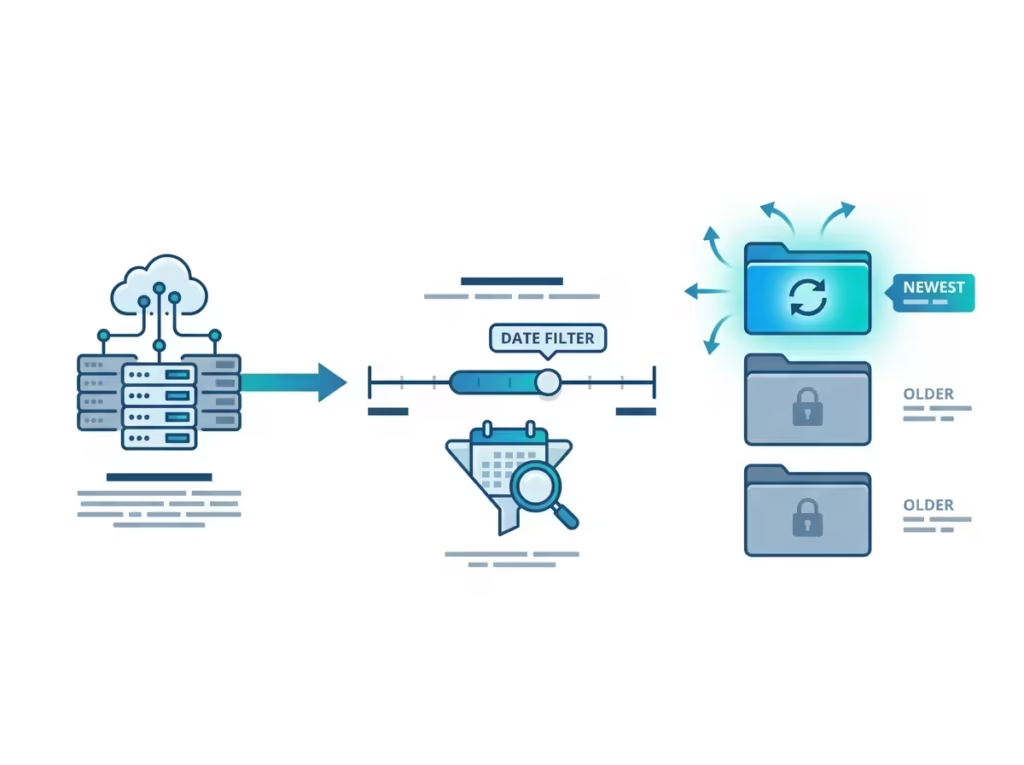
The mechanism relies on two things working together. First, two special Power Query parameters, RangeStart and RangeEnd, filter the source data by a date column. Second, a refresh policy defined on the table tells Power BI how to translate that filter into partitions and which partitions to refresh on each run.
When you first publish a dataset with Incremental Refresh configured, Power BI performs an initial load that builds all the historical partitions, one for each period in the retention window. After that, each scheduled refresh only processes the partitions that fall within the refresh period, typically the last day or two, while every older partition remains exactly as it was. Power BI manages the creation and removal of partitions automatically as time moves forward, so old partitions drop off the back of the retention window and new ones are created at the front.
This partitioning happens behind the scenes in the Power BI Service. As a developer, you define the policy; the Service handles the partition mechanics. The filtering that makes it possible, however, is set up in Power Query, using the skills covered in Power Query in Power BI Explained.
Import Mode vs Incremental Refresh
To understand Incremental Refresh clearly, it helps to place it against standard Import mode, the default way Power BI loads data. Incremental Refresh is not a separate storage mode; it is an enhancement applied to Import mode tables to change how they refresh.
In standard Import mode, every refresh reloads the entire table from the source. This is simple and works well for small to medium datasets. But as the table grows, the full reload becomes progressively slower and more resource-intensive, because it reprocesses all the historical data even though none of it has changed.
Incremental Refresh keeps the fast in-memory query performance of Import mode, but changes the refresh behaviour so only recent data is reloaded. The historical data stays cached in its partitions. You get Import mode’s speed for report users, without Import mode’s growing refresh burden.
Import Mode vs Incremental Refresh
| Feature | Import | Incremental Refresh |
|---|---|---|
| Dataset size | Small–Medium | Medium–Large |
| Refresh time | Longer (reloads all) | Shorter (recent only) |
| Historical data | Reloaded every time | Preserved in partitions |
| Source system load | Higher | Lower |
| Enterprise ready | Yes | Yes |
Full Refresh vs Incremental Refresh
| Feature | Full Refresh | Incremental Refresh |
|---|---|---|
| Refreshes all data | Yes | No |
| Refreshes only new data | No | Yes |
| Speed | Slower | Faster |
| Resource usage | Higher | Lower |
| Best for large datasets | No | Yes |
The practical guidance: keep standard Import mode for small datasets where refresh time is not a concern, and apply Incremental Refresh once a table grows large enough that full refreshes become slow or resource-heavy.
Understanding Partitions
Partitions are the foundation of how Incremental Refresh works. A partition is a horizontal slice of a table, containing the rows for a specific time period, that Power BI can load, refresh, or remove independently of the other slices.

Imagine a maintenance table holding ten years of records. With Incremental Refresh configured by year, Power BI divides it into partitions, one for each year. The 2016 partition holds all 2016 records, the 2017 partition holds all 2017 records, and so on up to the current year. Power BI can then refresh the current year’s partition without touching any of the previous nine.
Partitions are managed automatically once the refresh policy is defined. Power BI creates them during the initial load, refreshes the appropriate ones on each scheduled run, and, as time passes, retires partitions that fall outside the retention window and creates new ones for incoming periods. You never manage partitions by hand; you define the policy, and the Service handles the rest.
This partition structure is also what enables the performance gain. Because each partition is an independent unit, refreshing one is a small, fast operation, entirely separate from the bulk of the historical data sitting in the other partitions.
Creating RangeStart and RangeEnd Parameters
Incremental Refresh requires two specifically named Power Query parameters: RangeStart and RangeEnd. These names are reserved and case-sensitive, Power BI looks for them exactly, and they define the date boundaries used to filter and partition the data.

Both parameters must be of type Date/Time. They are created in the Power Query Editor through Manage Parameters. The sequence is:
- In the Power Query Editor, open Manage Parameters and create a new parameter named exactly
RangeStart, of type Date/Time, with a sample current value. - Create a second parameter named exactly
RangeEnd, also Date/Time, with a sample value later than RangeStart. - Apply a filter on the table’s date column so it keeps only rows where the date is greater than or equal to
RangeStartand less thanRangeEnd. - Confirm the filter uses this exact boundary logic, “is after or equal to” RangeStart and “is before” RangeEnd, to avoid double-counting rows at partition boundaries.
The filter applied to the date column, expressed in M, looks like this:
= Table.SelectRows(
    Source,
    each [MaintenanceDate] >= RangeStart
     and [MaintenanceDate] < RangeEnd
)
The sample values you set on the parameters are only used while developing in Power BI Desktop, they let you preview a manageable slice of data. Once published, Power BI overrides these values dynamically for each partition, feeding in the correct date boundaries automatically. The parameters are the mechanism that lets a single query definition serve every partition.
Configuring Incremental Refresh Policies
With the parameters and filter in place, the final setup step is defining the refresh policy on the table. This is done in Power BI Desktop by right-clicking the table in the Data or Model view and selecting Incremental refresh.
The policy is built around two key time settings that determine how the table is partitioned and refreshed:
- Store rows for the last (archive/historical period): how much total history to keep in the dataset, for example, “store rows for the last 10 years.” This defines the retention window.
- Refresh rows for the last (refresh period): how much recent data to actually refresh on each run, for example, “refresh rows for the last 2 days.” This defines what gets reprocessed each time.
In this example, Power BI keeps ten years of history but only refreshes the last two days of data on each scheduled run. The other ten years sit untouched in their partitions. This combination, a long retention window with a short refresh window, is the essence of Incremental Refresh and the source of its performance advantage.
The policy also offers optional advanced settings. Detect data changes lets Power BI check a “last modified” column and refresh a partition only if something in it actually changed, refining efficiency further. Only refresh complete periods ensures partitions align to full calendar periods. These options are useful refinements once the basic policy is working, but the two core settings, retention and refresh window, are what every Incremental Refresh policy is built on.
Publishing to Power BI Service
Incremental Refresh is configured in Power BI Desktop, but it only takes effect once the dataset is published to the Power BI Service and refreshed there. The Desktop file itself holds only the sample slice defined by your parameter values; the full partitioned dataset is built in the Service on the first refresh.
The deployment sequence is straightforward. Publish the report from Desktop to a workspace, as covered in Power BI Service Explained. Then trigger the first refresh in the Service, this initial refresh is the one that builds all the historical partitions, so it can take a while, since it loads the full retention window once. Every subsequent scheduled refresh is fast, because it only processes the recent refresh window.
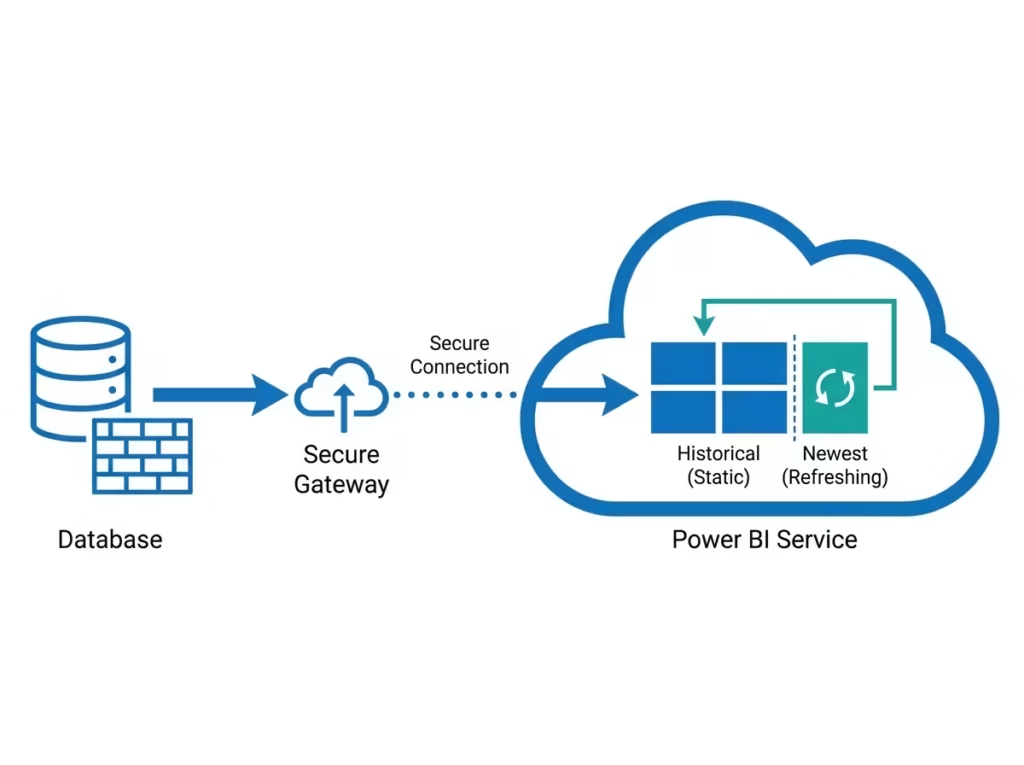
Regarding licensing: Incremental Refresh is available in both Power BI Pro and Premium, though historically it was a Premium-first feature and Premium (or Premium Per User / Fabric capacity) still offers advantages for the very largest datasets, including higher size limits and more refresh flexibility. For most large-but-not-enormous datasets, Pro is sufficient. Because these capabilities evolve, confirm current specifics for your scenario against Microsoft’s documentation. If the source is on-premises, a data gateway is required for the Service to reach it, exactly as described for scheduled refresh in the Power BI Service article.
Monitoring Refresh Performance
Once Incremental Refresh is live, monitoring confirms it is working and delivering the expected performance gains. The Power BI Service provides refresh history for every dataset, showing when each refresh ran, how long it took, and whether it succeeded.

To access it, open the dataset settings in the Service and view Refresh history. The pattern you want to see confirms Incremental Refresh is working: a single long initial refresh, that first run that builds all partitions, followed by consistently short subsequent refreshes. If later refreshes are still taking as long as the first, the configuration is likely reloading everything and should be reviewed.
For deeper analysis, refresh history can be exported, and the built-in usage and performance monitoring discussed in 10 Power BI Dashboard Best Practices complements refresh monitoring by confirming the reports built on the dataset are performing well for end users. Together, these give a complete picture of dataset health, fast refreshes feeding responsive reports.
Hospital Equipment Maintenance History
This section demonstrates Incremental Refresh applied to a realistic, large-scale scenario: a hospital biomedical engineering department maintaining ten years of equipment maintenance history. It is exactly the kind of high-volume, history-rich operational data where Incremental Refresh delivers its greatest value, and where most generic tutorials never venture.

The Scenario
The department’s maintenance system holds ten years of records across several categories:
- Preventive maintenance records, scheduled servicing for every device.
- Corrective maintenance, unplanned repairs following breakdowns.
- Calibration history, accuracy checks on diagnostic and measurement equipment.
- Asset inspections, routine safety and compliance inspections.
- Equipment failures, logged incidents of device failure.
Across a decade and a large equipment estate, this amounts to a very large maintenance fact table. New records are added continuously, but records from previous years never change, a maintenance job completed in 2019 is a permanent historical fact.
The Refresh Problem Without Incremental Refresh
With standard Import mode, every nightly refresh reloads all ten years of maintenance records, even though only the last day’s entries are new. As the history grows, this refresh takes longer each year, places heavy load on the maintenance source system, and risks exceeding the overnight refresh window. The department ends up reprocessing millions of unchanged historical rows to capture a handful of new ones.
The Incremental Refresh Solution
Incremental Refresh is configured on the maintenance fact table using the maintenance date column. The RangeStart and RangeEnd parameters filter on that date, and the refresh policy is set to:
- Store rows for the last 10 years, preserving the full maintenance and compliance history executives and auditors need.
- Refresh rows for the last 7 days, updating only the most recent week of maintenance activity on each run.
The result addresses every part of the requirement directly:
- All historical records are kept. The full ten years remain in the dataset, available for long-term trend analysis, equipment lifecycle reporting, and compliance audits.
- Only recent data is refreshed. Each nightly run processes just the last seven days of maintenance activity, not the entire decade.
- Refresh time drops sharply. A refresh that once took hours completes in minutes, because it touches a tiny fraction of the data.
- System load is reduced. The maintenance source database is queried only for recent records, keeping it responsive for operational use during the refresh.
- Executive reporting is supported. Leadership dashboards showing ten-year equipment reliability trends, maintenance compliance rates, and failure history stay fully populated and current, without the refresh burden a full reload would impose.
This is the operational reality of Incremental Refresh in a data-intensive, history-critical environment. The hospital retains a full decade of auditable maintenance history, feeds it into the kind of executive dashboards described in How to Build Your First Power BI Dashboard, and yet keeps nightly refreshes fast and light, an outcome that would be impractical with a full refresh of a table this size.
Incremental Refresh Best Practices

Use a reliable, indexed date column. Incremental Refresh partitions on a date column, so choose one that is accurate, consistently populated, and ideally indexed at the source for efficient filtering.
Ensure query folding works. For the source to return only the requested partition efficiently, the RangeStart/RangeEnd filter must fold into a native query. As explained in Power Query in Power BI Explained, broken query folding forces Power BI to pull all data before filtering, defeating the purpose.
Match the refresh window to how data actually arrives. If records can be backdated or corrected within a few days, set the refresh window wide enough to capture those late changes, rather than refreshing only the last day.
Keep the retention window to what reporting genuinely needs. Storing more history than anyone reports on inflates the dataset unnecessarily. Set retention to the period your analysis and compliance requirements actually call for.
Use “Detect data changes” for further efficiency where suitable. If the source has a reliable last-modified column, this option refreshes a partition only when its data has genuinely changed, reducing work even further.
Test the initial refresh expectations. The first Service refresh builds all partitions and is slow by design. Plan for it, and confirm that subsequent refreshes are fast, which is the real measure of success.
Build on a clean data model. Incremental Refresh operates on a single table, but that table lives in your wider model. A clean star schema, as covered in Power BI Data Modeling Explained, keeps the whole solution performant alongside the refresh gains.
Common Incremental Refresh Mistakes
Misnaming the parameters. The parameters must be named exactly RangeStart and RangeEnd, case-sensitive. Any variation, and Power BI will not recognize them, and the Incremental Refresh option will not configure correctly.
Breaking query folding. If a transformation before the date filter breaks query folding, the source cannot filter by partition and Power BI loads everything anyway. This silently eliminates the performance benefit. Keep the RangeStart/RangeEnd filter foldable.
Using the wrong filter boundaries. The filter must be “greater than or equal to RangeStart and less than RangeEnd.” Using the wrong operators can double-count boundary rows or miss data at partition edges.
Expecting it to work in Desktop. Incremental Refresh partitioning only happens in the Power BI Service. In Desktop, you only ever see the sample slice defined by your parameter values, this is expected, not a fault.
Setting an unnecessarily long refresh window. Refreshing the last 30 days when only the last 2 days ever change wastes processing on data that is already stable. Match the refresh window to actual data behaviour.
Republishing carelessly. Republishing the dataset from Desktop can reset the partitions and force a full initial refresh again. Be deliberate about republishing large Incremental Refresh datasets, and understand the impact before doing so.
Assuming it works with pure DirectQuery the same way. Incremental Refresh applies to Import mode partitions. DirectQuery and composite model scenarios behave differently, so confirm the storage mode matches your intent before configuring.
Conclusion
Incremental Refresh is the capability that makes large datasets practical in Power BI. By partitioning a table on a date column and refreshing only the recent window, it turns a slow, resource-heavy full reload into a fast, targeted update, while preserving all the historical data your reporting depends on.
The setup follows a clear path: create the RangeStart and RangeEnd parameters, filter the date column, define a refresh policy with a long retention window and a short refresh window, publish to the Service, and confirm through refresh history that subsequent refreshes are fast. The hospital maintenance example shows these principles handling ten years of history while keeping nightly refreshes light, exactly the balance that large, history-critical datasets require.
Start by identifying your largest, slowest-refreshing table, one with substantial history that rarely changes. Confirm it has a reliable date column and folding source, then apply Incremental Refresh. The reduction in refresh time and system load is often immediate and substantial, and it is what allows a Power BI solution to scale from beginner reporting into genuine enterprise capability.
Frequently Asked Questions
Incremental Refresh is a Power BI feature that refreshes only the most recent portion of a large dataset instead of reloading the entire table. It splits the table into date-based partitions and refreshes only the partitions containing new or changed data, leaving historical partitions untouched, which makes refreshes far faster and lighter.
No. Incremental Refresh is available in both Power BI Pro and Premium. It was historically a Premium-first feature, and Premium, Premium Per User, or Fabric capacity still offers advantages for the very largest datasets, such as higher size limits. For most large-but-manageable datasets, Pro is sufficient.
RangeStart and RangeEnd are two specifically named, case-sensitive Power Query parameters of type Date/Time that Incremental Refresh requires. They define the date boundaries used to filter and partition the data. You apply a filter keeping rows greater than or equal to RangeStart and less than RangeEnd, and Power BI sets their values automatically per partition.
It improves performance by refreshing only the recent partition of a table rather than reloading all historical data every time. Because most historical rows never change, reprocessing them is wasted work. Refreshing only the recent window cuts refresh time sharply, reduces load on the source system, and lowers memory and processing use.
Incremental Refresh is designed for Import mode partitions, where it caches historical data and refreshes recent partitions. DirectQuery and composite model scenarios behave differently, since DirectQuery queries the source live rather than caching it. Confirm your storage mode matches your intent before configuring, as the behaviour is not identical across modes.
Keep the amount of history your reporting and compliance requirements genuinely need, no more. Storing more history than anyone analyzes inflates the dataset unnecessarily. Set the retention window (store rows for the last X period) to match actual reporting needs, whether that is two years, five years, or ten, and keep the refresh window short.
Yes, significantly. After the initial refresh that builds all partitions, every subsequent refresh processes only the recent window rather than the whole table. For large datasets this often reduces refresh time from hours to minutes, because the bulk of historical data is never reprocessed once it is loaded.
Incremental Refresh requires a reliable date column and a source that supports query folding, otherwise the performance benefit is lost. It partitions on date, applies to Import mode, and the partitioning only takes effect in the Power BI Service, not Desktop. Republishing can reset partitions, and very large datasets may need Premium or Fabric capacity.
1 thought on “Power BI Incremental Refresh Explained: Faster Refreshes for Large Datasets”